
GuideLayer
Enhance your abilities with the tools you already use.Master the new ones with help that fades.
Ask in place — GuideLayer points at the real control and leaves you sharper next time. Capability compounds on your Mac.
30-day trial · Your keys · Apple Silicon
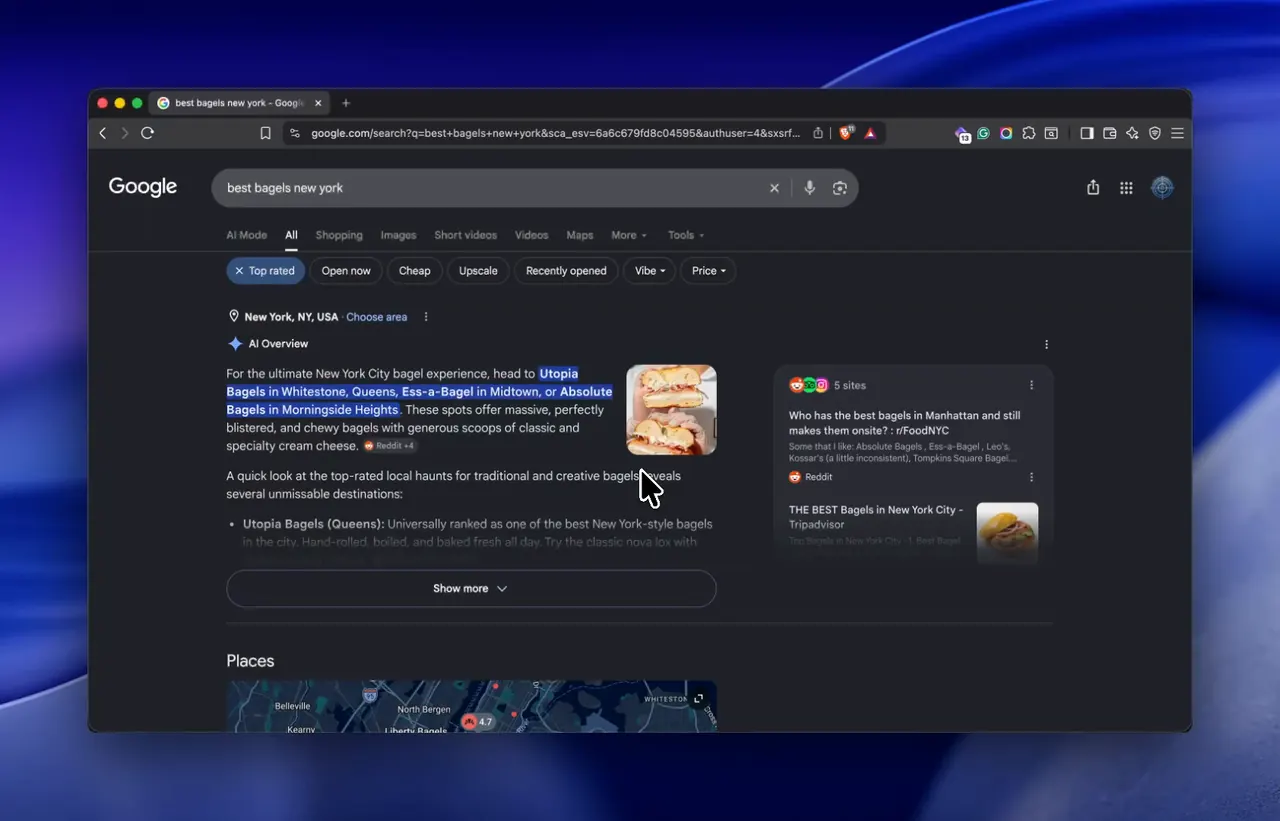
In the apps you already use
Help stays on the screen you're in — not another chat tab
You do the work
It points at the real control; you act; you get sharper
Less help next time
What you learn sticks on your Mac for the next pass
Private by design
Capture when you ask · keys in Keychain · your route
Works in the apps you already open


How ability compounds
Answers fade.Capability compounds.
Ask where you work. GuideLayer points at the real control. You act. Next time you need less help. That's the product — not a chat that forgets the screen.
01 · Enhance what you already use
See the control.Do the step yourself.
Help shows up in the app that's already open — highlighting the real button or field, waiting for you, then showing what changed. You stay in the driver's seat.
- Points at the real control in your app — not a floating buddy cursor
- Shows what happened after you act, so the skill can stick
- You keep doing the work. Ability grows in place.
Ask → point → you act
02 · Ask on the fly
Choose how much help.Keep getting better.
Say "Hey Guide" mid-task without leaving the work. Dial help from a light hint to a fuller walkthrough — then watch that help fade as you improve.
- You set how much help you want, each time
- Voice or type — guidance stays on the screen you're in
- Next pass needs less help. That's the point.
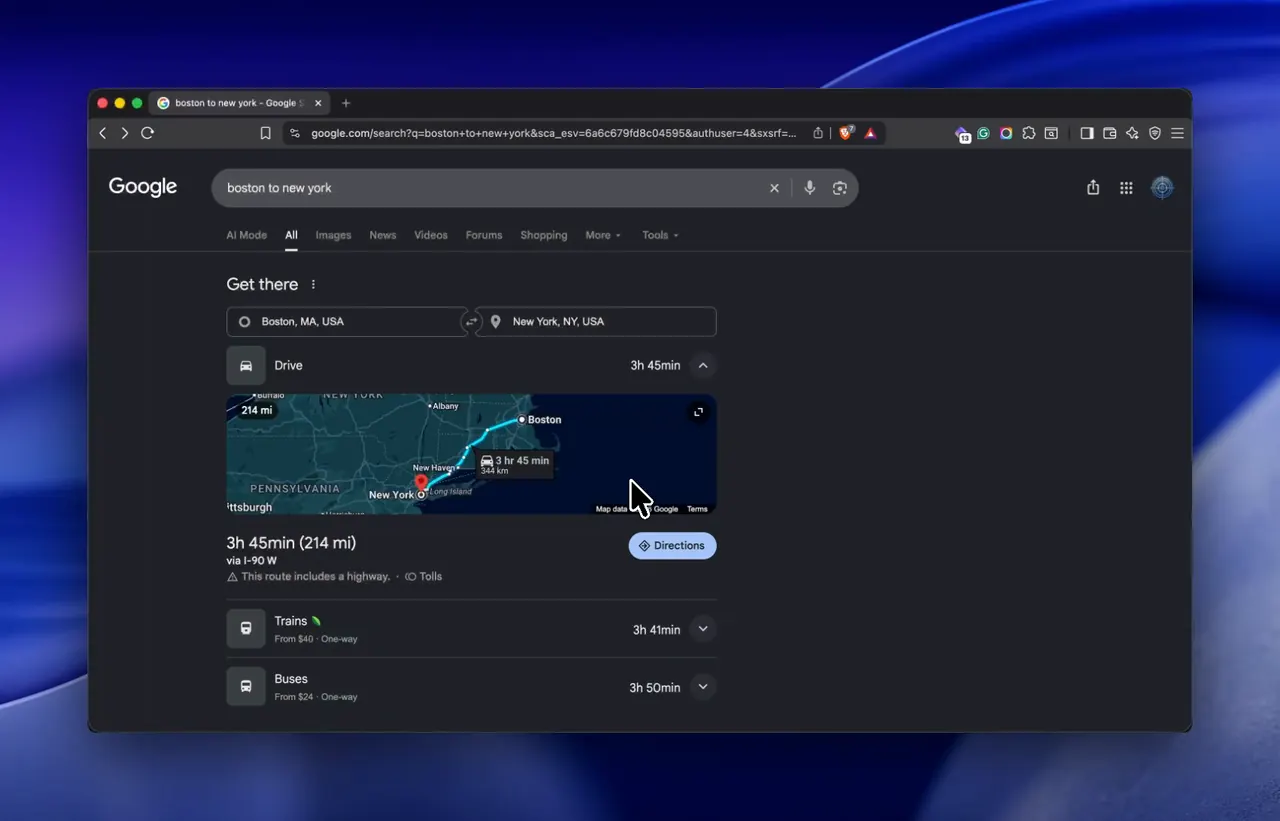
Ask → guide → less help next time
03 · Master what's new
Learn the new tool.Until it's yours.
When something is unfamiliar, Tutor Mode walks with you until the workflow clicks — then you can save a tutorial or checklist on your Mac for next time.
- Remembers what you've gotten better at, by app and workflow
- Turn a hard session into a tutorial or checklist you reopen later
- Help fades as the tool stops feeling new
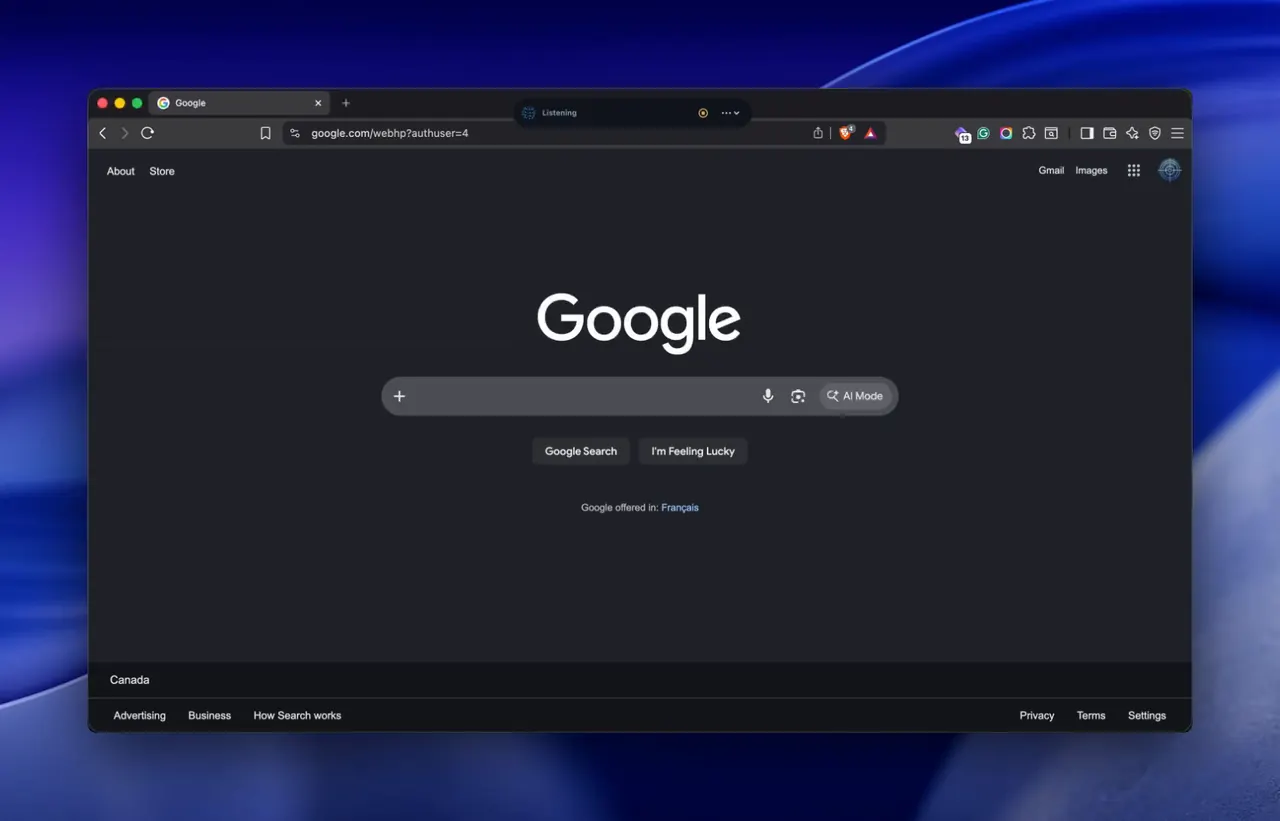
Learn → practice → less help next time
When guidance isn't enough
Enhance you first.Hand work off only when you choose.
Most of the time you want sharper ability in the tools you already use. A second lane can run research, coding, or file work and bring results back for you to check — Full license, never the first thing you meet.
See what's in FullResults you can inspect
When you hand work off, you see intent, progress, and what came back — not agent theater.
Watch & Review
Pin one window while you work, then ask what changed when you need feedback.
You authorize the scope
Background work stays bounded. Full access is deliberate, never the default.
Trust & privacy
Ability needs a screenyou can trust.
Ability only compounds when you trust who sees the screen. Open Privacy Center anytime — don't take our word for the posture.
You choose the inference route
Bring your own provider keys. Your route goes to the provider you choose, and Privacy Center shows which path is active.
Your keys stay yours
BYO keys live in macOS Keychain — not on our servers.
Memory you control
Encrypted on device. Screenshots off unless you turn them on. Capture fires when you ask.
Posture you can check
Privacy Center: incognito, per-app blocklist, live readout of the active route.
Pricing
Start free.Own it when you're ready.
Everyone gets a 30-day trial of everything. Lite keeps the core free forever. Full is a one-time license on up to 3 Macs — bring your own model keys.
Lite
Free forever
$0
After your trial ends
Ask on the fly, on-screen guidance, voice, and privacy controls — the core experience, free after your trial.
Full
Own GuideLayer
$79
$79 once · up to 3 Macs · no monthly fee
Own the complete GuideLayer experience on up to three Macs. Bring your own model routes. No monthly fee for the app.
Inference uses the provider routes you connect (for example OpenAI or Anthropic with your keys). Keys stay in Keychain. Privacy Center shows which path is active.
Not sure which plan? Take the 60-second quiz · Full details · Download first
Get GuideLayerfor Mac
Developer ID-signed and notarized. We ship outside the Mac App Store because enhancing ability across real apps needs Accessibility access the sandbox won't allow.
v1.5.0 · Apple Silicon only · Changelog · Commercial license
Requirements
- Apple Silicon Mac (arm64) with macOS 26.0 or later
- Connect an AI route — Codex or a Claude API key — before first guidance
- Direct download DMG (not on the Mac App Store)